Getting Started
This guide walks you through setting up Dike from installation to viewing your first compliance results. The entire process takes about 10-15 minutes.
Prerequisites
Before you begin, ensure you have:
- Jira Cloud instance with administrator access
- GitHub account with access to repositories you want to monitor
- GitHub organization membership (recommended) - Dike works best when monitoring organization repositories
If you're testing Dike, we recommend starting with a single repository before adding your entire organization.
Step 1: Install Dike
- Navigate to the Atlassian Marketplace and search for "Dike"
- Click Get it now and select your Jira instance
- Review the permissions and click Install
- Wait for the installation to complete
Once installed, Dike automatically sets up its database and creates example compliance rules to help you get started.
Accessing Dike
After installation, access Dike through:
- Click the Settings (gear icon) in your Jira navigation
- Under Apps, select Dike Configuration
You'll see the Getting Started tab with a three-step setup guide.
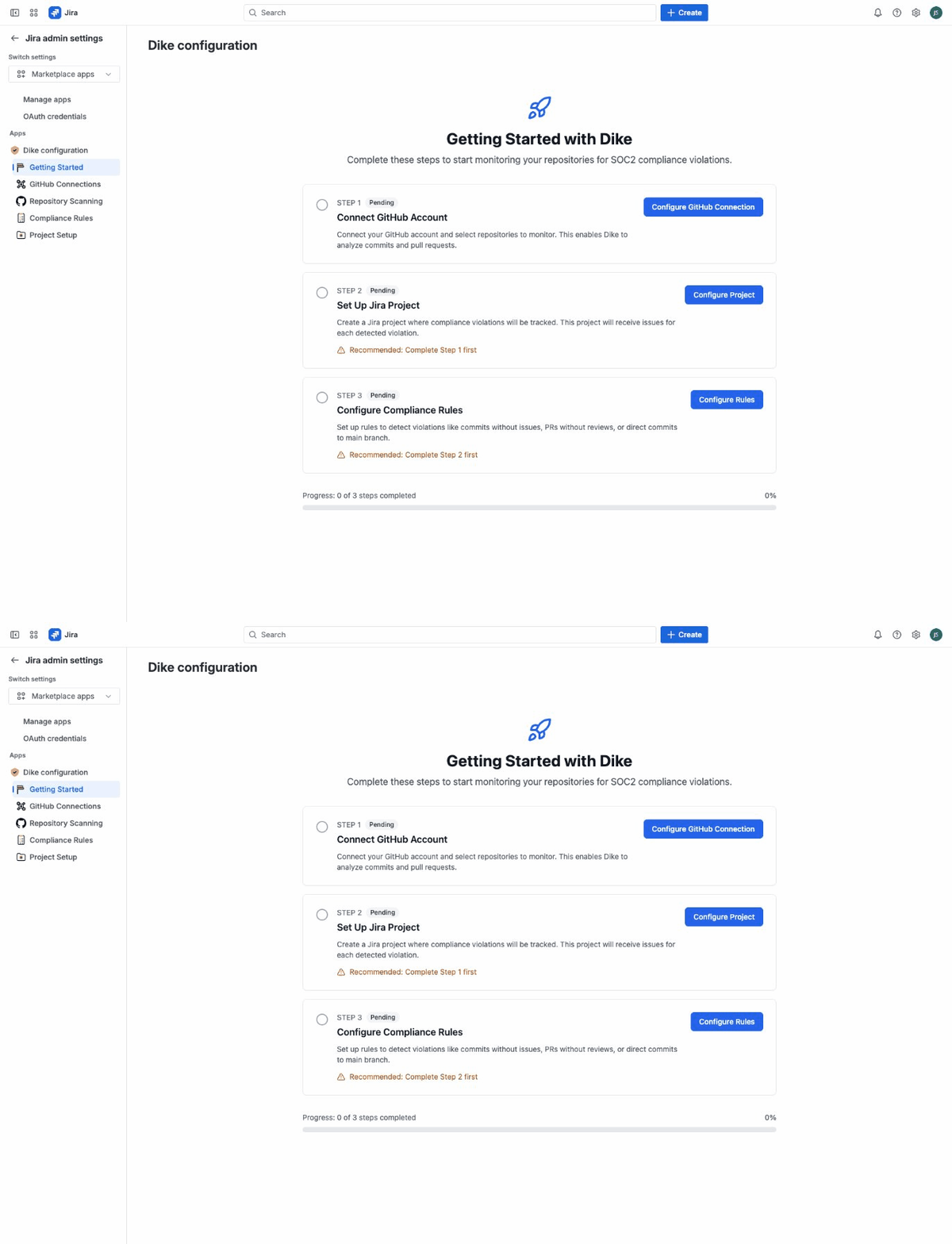
Step 2: Connect Your GitHub Account
Dike needs access to your GitHub repositories to monitor compliance. Click Configure GitHub Connection to begin the setup process.
Install the GitHub App
The GitHub App grants Dike access to read repository data (commits, pull requests, workflows).
- Click Configure GitHub Connection on the Getting Started page
- On GitHub, select your organization
- Choose which repositories Dike can access:
- All repositories - Monitor everything in the organization
- Only select repositories - Choose specific repositories
- Click Install & Authorize
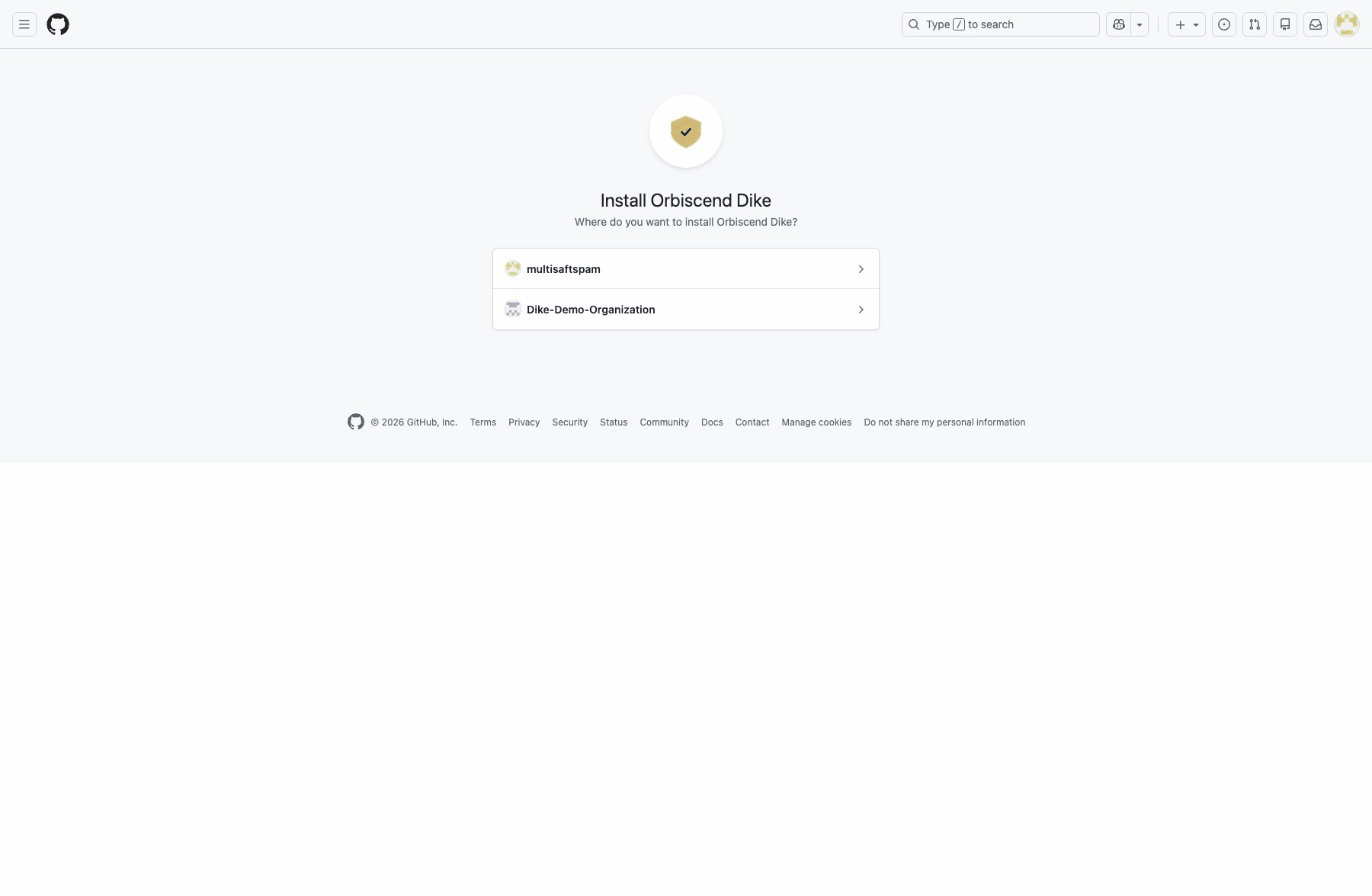
For SOC2 compliance monitoring, we recommend granting access to all repositories to ensure complete coverage. You can always exclude specific repositories later using compliance rules.
After connecting, the Getting Started page will show Step 1 as complete, and you'll see your connected organizations in the GitHub Connections tab.
Step 3: Create a Compliance Violations Project
Dike creates Jira issues for each compliance violation it detects. These issues need a dedicated project.
- Go to the Project Setup tab
- Enter a Project Name (e.g., "Compliance Violations")
- Enter a Project Key (e.g., "COMPVIOL")
- Must be 2-10 uppercase characters, numbers, and underscores only
- Click the Generate button to auto-generate from the name
- Click Create Compliance Violations Project
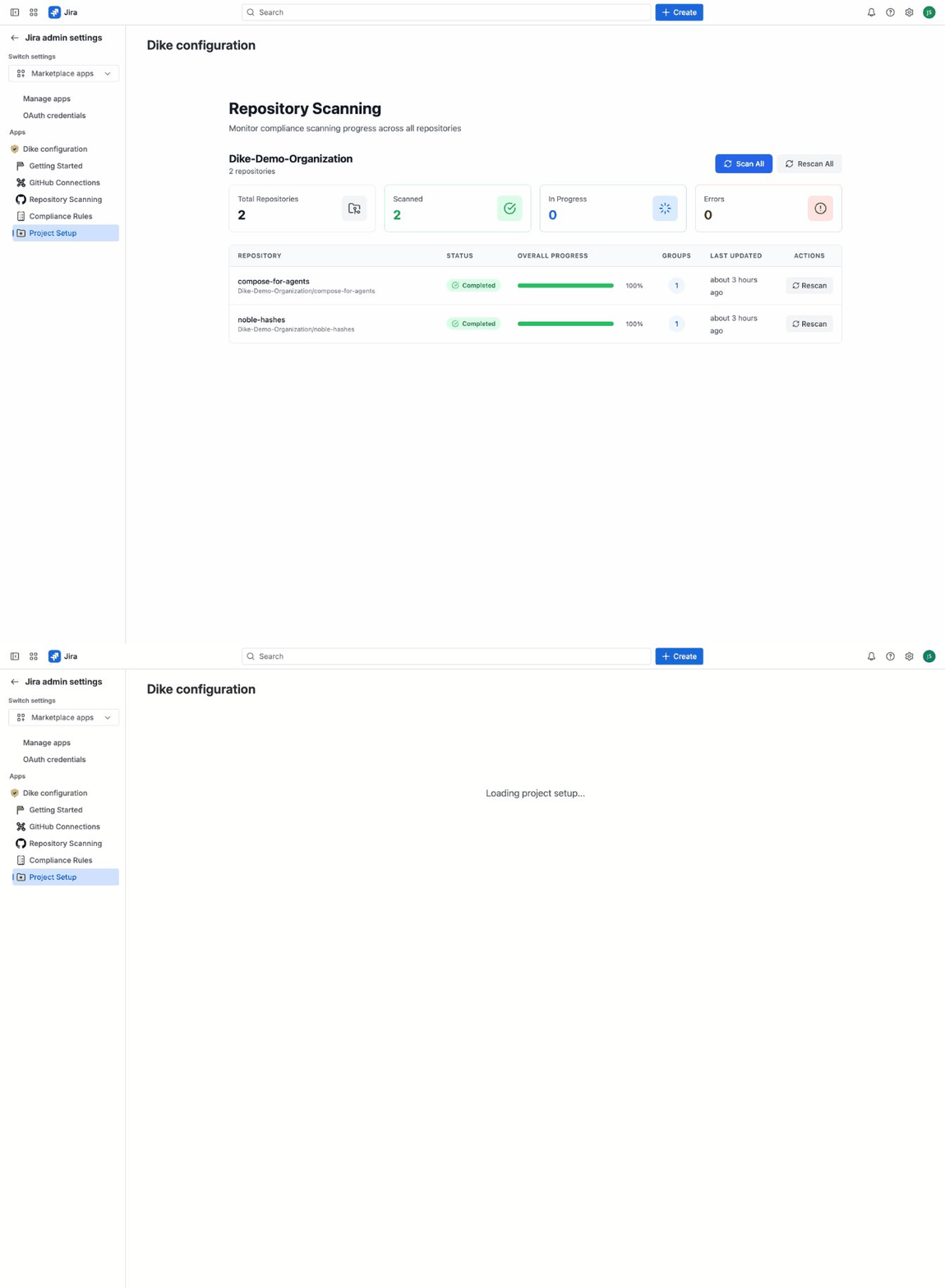
Dike creates:
- A new Jira project with your specified name
- A custom "Compliance Violation" issue type
- Proper configuration for automated violation tracking
Step 4: Configure Compliance Rules
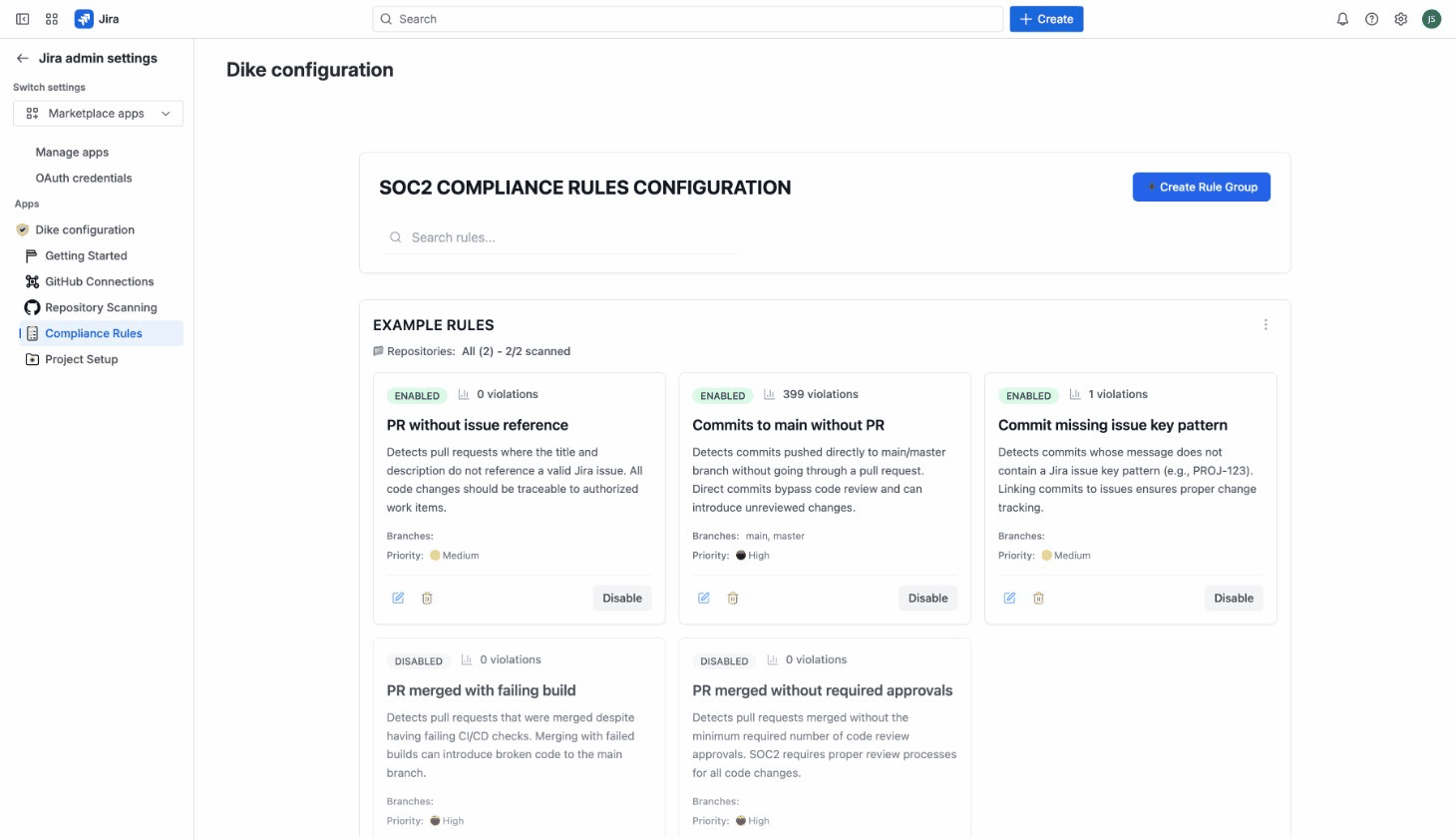
Dike comes with example compliance rules pre-configured to help you get started quickly.
Default Rules
Dike includes rules for common SOC2 compliance checks:
- Commits without associated Jira issues
- Pull requests without associated Jira issues
- Pull requests merged with failing CI checks
- Pull requests merged without approvals
- Direct commits to main/master branches
These pre-configured rules are disabled by default. To start monitoring, go to the Compliance Rules tab and click Enable on the rules you want to activate. This allows you to review and customize rules before they start detecting violations.
Customizing Rules
To modify or create rules:
- Go to the Compliance Rules tab
- Create a Rule Group to organize related rules
- Add individual rules with:
- Rule type - What violation to detect
- Repository scope - Which repositories to monitor
- Exclusions - Branches or paths to ignore
- Notifications - Who gets alerted
For detailed rule configuration, see the Configuration Guide.
Step 5: Run Your First Scan
With GitHub connected and rules configured, you're ready to scan for compliance violations.
What Gets Scanned
By default, Dike scans the last 365 days of commits and pull requests in your repositories. This gives you immediate visibility into your recent compliance history without overwhelming you with older data.
Automatic Scanning
Dike automatically scans your repositories:
- Every 5 minutes - Quick incremental checks for new activity
- Every hour - Deep compliance analysis
New violations are detected and created as Jira issues automatically.
Manual Scanning
To trigger an immediate scan:
- Go to the Repository Scanning tab
- Find the repository you want to scan
- Click the Rescan button
- Watch the progress bar as Dike analyzes commits and pull requests
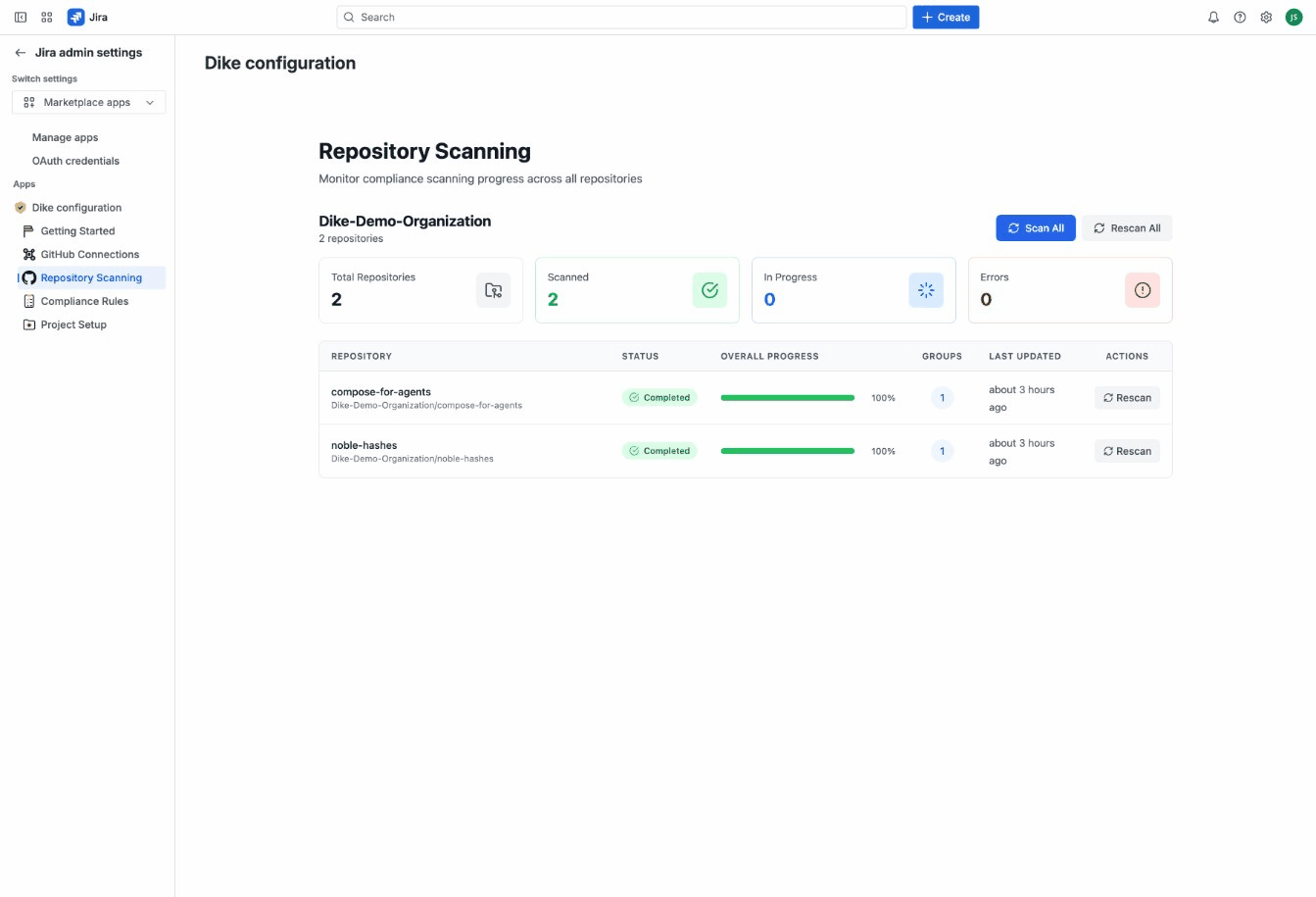
For your first scan, we recommend manually triggering a scan on a single repository to see results immediately rather than waiting for the automatic schedule.
Step 6: View Compliance Results
In the Dike Dashboard
The Repository Scanning tab shows:
- All connected repositories grouped by organization
- Scan progress and status for each repository
- Detected violations with filtering options
Filter violations by:
- Status: Open, Acknowledged, Resolved
- Severity: High, Medium, Low
- Type: Commits, Pull Requests
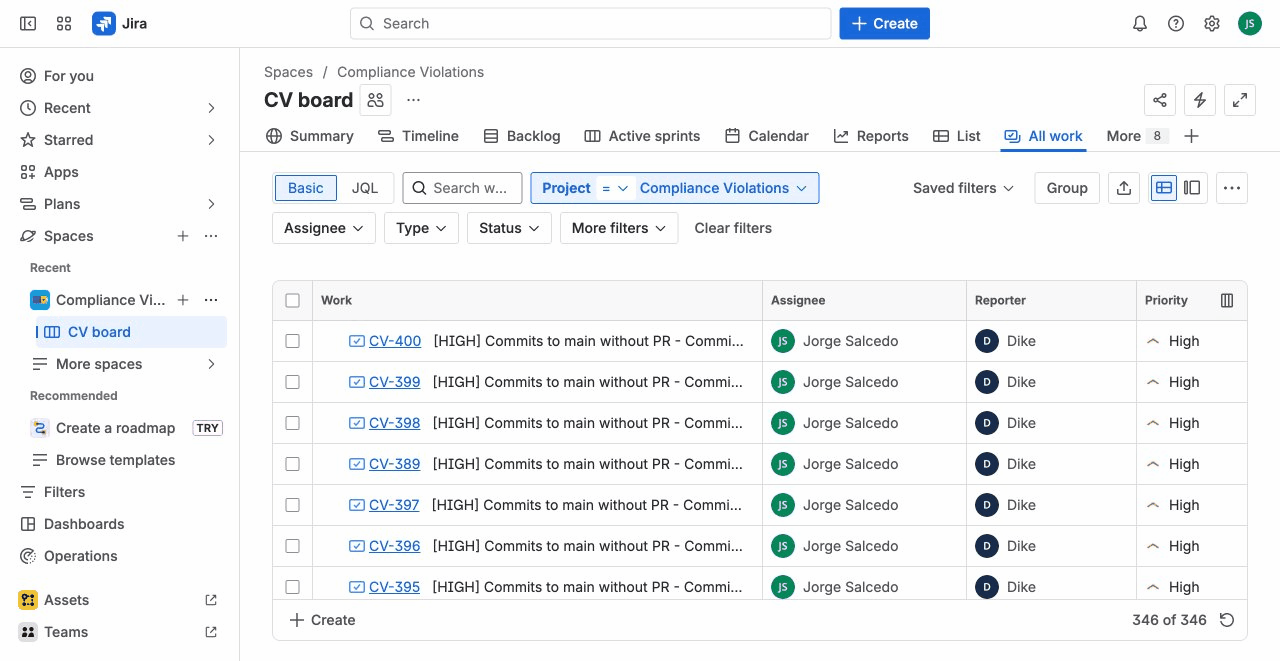
In Jira
Each violation also creates a Jira issue in your Compliance Violations project. Use JQL to find violations:
project = "COMPVIOL" AND type = "Compliance Violation"
Or filter by status:
project = "COMPVIOL" AND status = Open
See Working with Violations for more JQL examples.
What's Next?
Congratulations! Dike is now monitoring your repositories for SOC2 compliance violations.
Recommended next steps:
- Review detected violations - Check if the default rules are catching real issues
- Fine-tune your rules - Adjust rule configuration to reduce false positives
- Set up a dashboard - Create a Jira dashboard to track compliance status at a glance
- Add more repositories - Expand monitoring to cover your entire organization
Learn more:
- Configuration Guide - Detailed settings reference
- Working with Violations - Managing and resolving violations
- Building Dashboards - Creating compliance dashboards
- Compliance Checks Reference - Understanding each check type