Approving timesheets
Approvers review submitted weeks from the Approvals view. Open it from the Aevon navigation; the Pending approvals tab is your inbox.
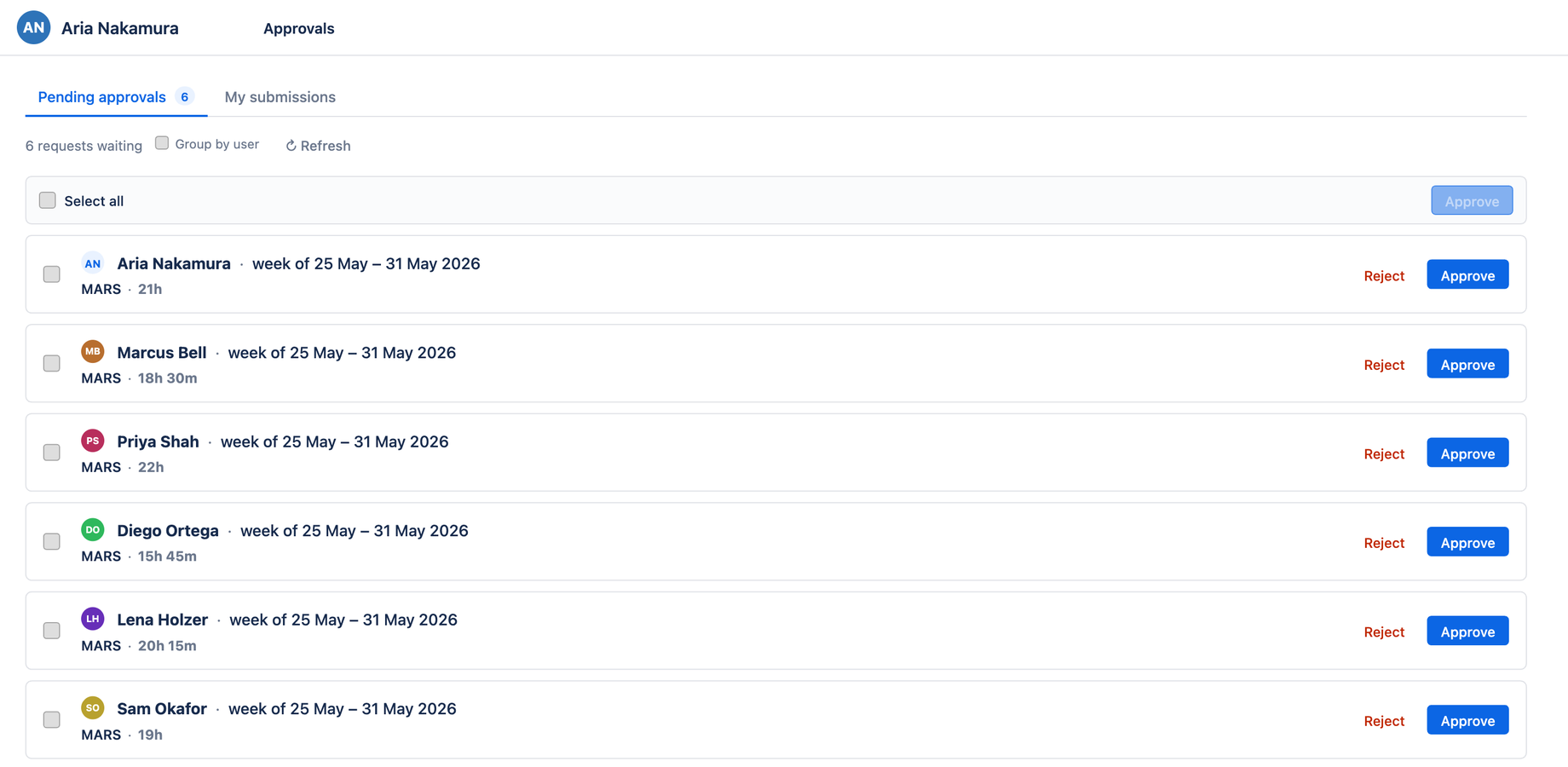
The Pending approvals inbox
Each row is one approval request waiting on you, showing the submitter, the week, the project or account, and the total hours. You can optionally Group by user to collapse multiple weeks from the same person.
When nothing is waiting, the inbox shows a single clear empty state — "Nothing waiting for you." — with a hint that requests appear when a teammate submits a week with you as their approver. There's no leftover toolbar to act on when the list is empty.
Approving
- Approve a single request with the Approve button on its row
- Approve several at once by selecting their checkboxes (or Select all) and clicking the bulk Approve button
A week is only fully Approved once every one of its approval requests has been approved — including any that routed to other approvers. See Approval statuses.
Rejecting
Click Reject on a request and add a comment explaining why (a comment is required). Rejecting sends the whole week back to Draft so the submitter can fix it and resubmit.
The comment is the feedback loop. Because a rejection bounces the entire week to draft, telling the submitter what to fix saves a round-trip.
Who can approve
The Approvals view is available to anyone with the approver or admin role. Approvers are usually set as an account's default approver, but a submitter can also route a group to a specific approver when submitting. See Permissions.