Permissions
Aevon has three roles, all managed in one place: Jira → System → Global permissions. They sit on top of Jira's own permissions.
The roles
| Role | Global permission | Can do |
|---|---|---|
| Jira site administrator | Jira ADMINISTER | Everything. A universal override that implies every Aevon role — and can never be removed inside Aevon. |
| Aevon Administrator | aevon-admin | Everything in Aevon — worklog rules, custom attributes, accounts, categories, routing, and the billing review. |
| Aevon Account Administrator | aevon-account-admin | Manage accounts, categories, and account routing (but not site settings). |
| Aevon Reviewer | aevon-reviewer | Open the cross-team Billing review and export it (read-only; no admin power). |
| Approver | — (per submission) | Approve or reject the weeks submitted to them. |
| Any authenticated user | — | Log, edit, and delete their own worklogs, submit and recall their own week, and use the calendar and reports. |
An Aevon Administrator (and therefore every Jira site admin) is automatically also an Account administrator, Reviewer, and Approver. The narrower roles only add people on top of admins — they never restrict an admin.
Everyone can use the calendar and reports regardless of role.
Jira admins can never be locked out
Jira site administrators always have full access to Aevon. Jira's ADMINISTER permission is the first check in every Aevon admin test, so a site admin is automatically an Aevon Administrator, Account administrator, Reviewer, and Approver. No setting can turn this off — it's the safety net that guarantees someone can always administer the app.
How to grant a role
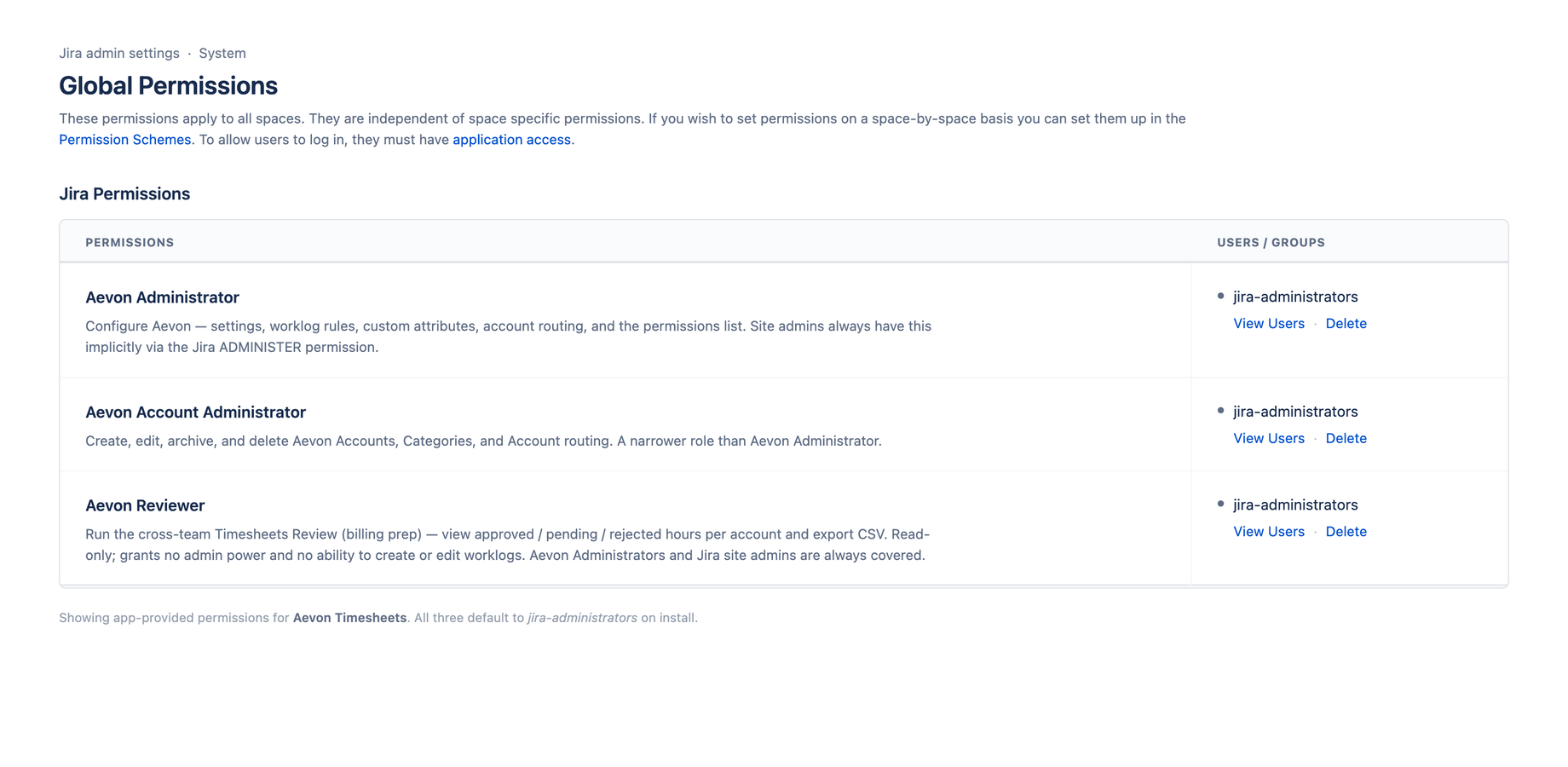
All three Aevon roles are granted in Jira → System → Global permissions — there is no separate permissions screen inside Aevon.
- Go to Settings (⚙) → System → Global permissions
- Find Aevon Administrator, Aevon Account Administrator, or Aevon Reviewer
- Add the Jira group that should hold the role, then click Add
Key points:
- All three default to the
jira-administratorsgroup, so your Jira admins have every role automatically on a fresh install. - Grants are group-based, and only Jira site admins can change them.
- Approvers aren't a global role. A worklog's approver is chosen when a week is submitted (an account's default approver, or the project fallback). The Approvals inbox appears for admins and for anyone who has an approval routed to them.
Earlier versions let you add admins and account administrators on an in-app Settings → Permissions page. That page has been removed — roles now live only in Jira global permissions. If you had added people there who are not Jira site admins, re-grant them through a Jira group in Global permissions so they keep access. (Jira site admins and the jira-administrators group are unaffected.) The in-app Settings area now contains only Worklog rules and Custom attributes.
What each view requires
| View | Required role |
|---|---|
| Calendar | Anyone |
| Reports | Anyone |
| Approvals | Approver or admin |
| Billing review | Reviewer or admin |
| Accounts | Account admin or admin |
| Settings | Admin |
See the full permissions matrix for views and actions side by side.
Editing needs a license; viewing never locks out
Every change in Aevon — logging time, submitting, approving, and all admin settings — requires an active Marketplace license. Reads and exports stay open even if the license lapses, so you can always get your data out. There's no data lock-in.
Enforcement is on the backend
Role checks run on the backend resolvers, not just in the UI. Even if someone reaches a restricted view by URL, the server rejects the action. The frontend gate exists only for a clean experience (a clear Access denied message instead of a flash of restricted UI) — it is not the security boundary.