Worklog cards
Each worklog on the calendar renders as a card in its time slot. A card shows the issue key, summary, duration, and any custom attributes marked show on card. Cards are colored deterministically per project, so the same project always gets the same color.
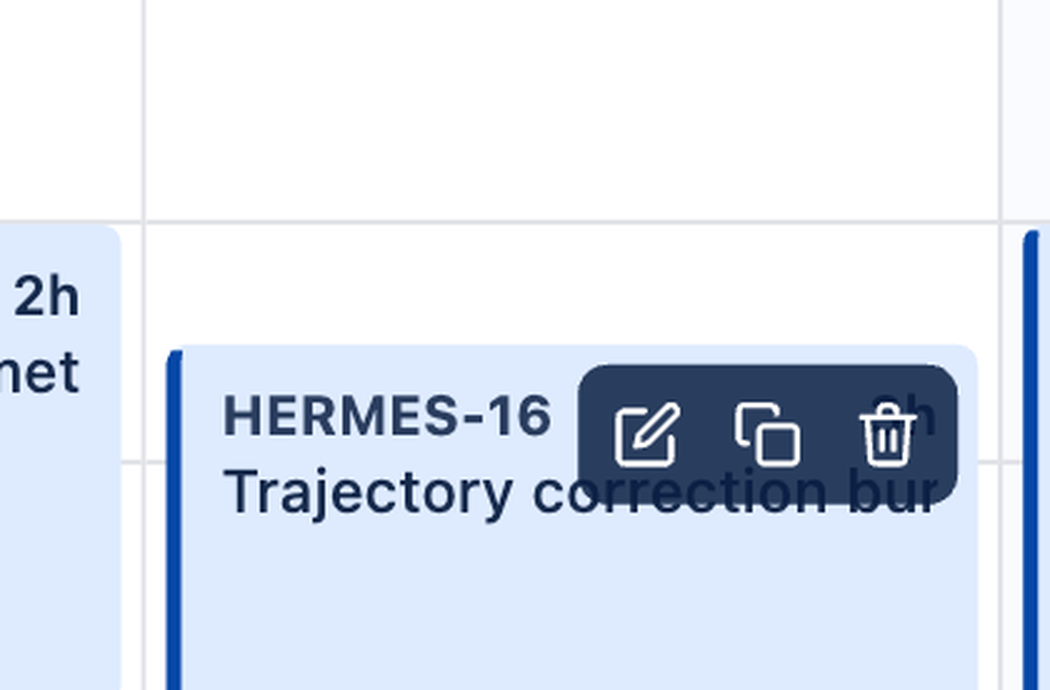
Hover toolbar
Hovering a card reveals a three-icon toolbar at the top:
- Edit — open the Log Work dialog in edit mode
- Duplicate — create a copy of the worklog
- Delete — remove the worklog
Clicking the card body (rather than a toolbar icon) also opens the dialog in edit mode, with every field — issue, account, date, time, duration, description, billable flag, and custom attributes — pre-filled. The duration is pre-selected so you can immediately overtype it.
Density tiers
Cards adapt to how much vertical space they have, across four density tiers:
| Tier | Height | What's shown |
|---|---|---|
| xs | ~15 min | Issue key + duration |
| sm | up to ~1 h | Key + summary + duration |
| md | a few hours | Key + summary + duration + description hint |
| lg | 4 h+ | All of the above + custom attribute chips |
This keeps a 15-minute sliver readable while letting a half-day block show its full detail.
Overlapping worklogs
When several worklogs occupy the same time slot, Aevon splits the slot into side-by-side lanes so each card stays visible. With a large number of worklogs overlapping the exact same slot the lanes get narrow — in practice, logging that many simultaneous entries on one slot is rare.