The weekly calendar
The calendar is Aevon's home screen: a Monday–Sunday grid where you see, create, edit, and rearrange your worklogs. Open it from Apps → Aevon Timesheets in the Jira navigation.
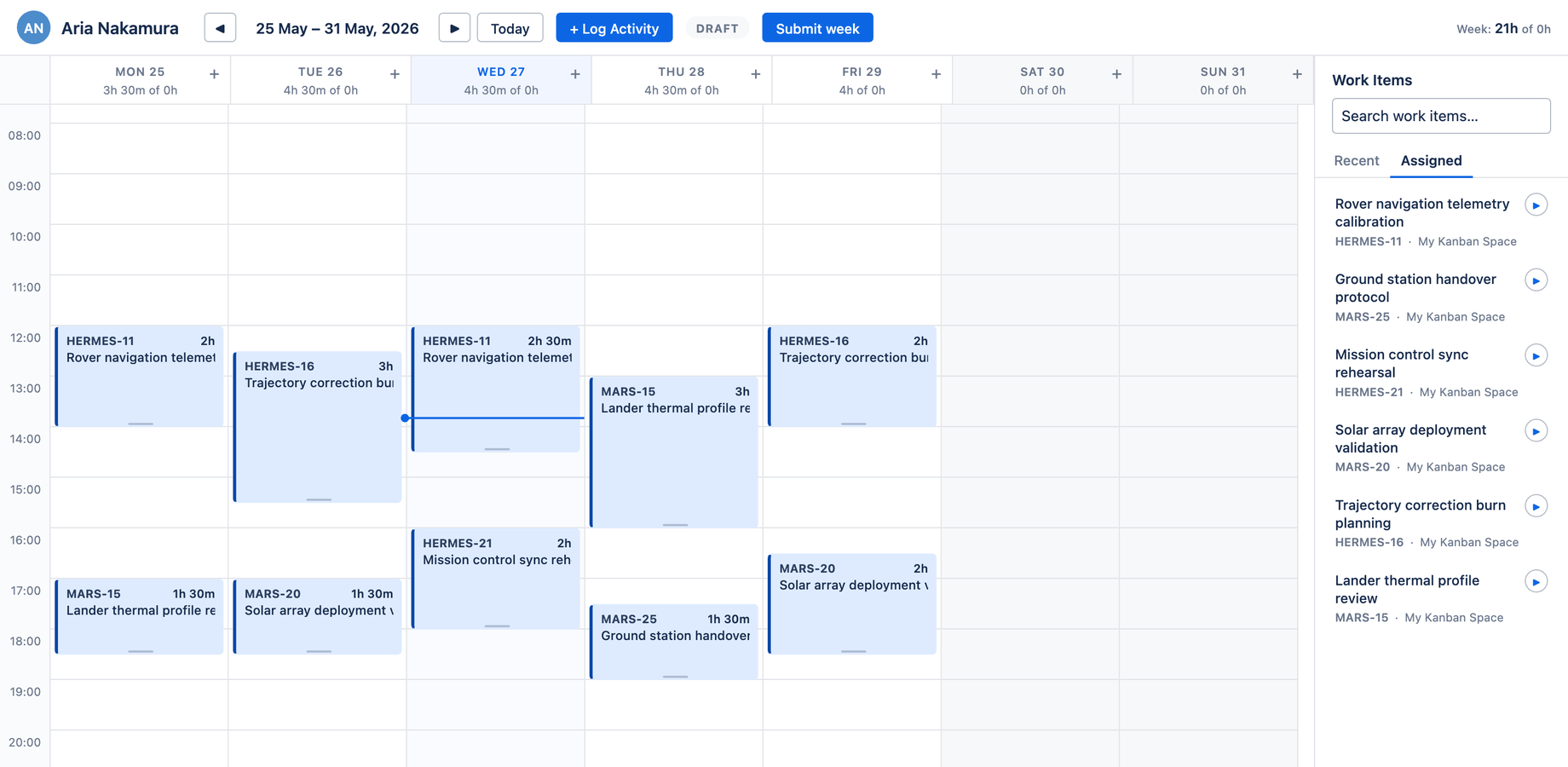
Anatomy
The calendar has three parts.
Week header
Across the top:
- Your avatar and name
- The week range (e.g. 25 May – 31 May, 2026) with previous / next arrows and a Today button to jump back to the current week
- The Log Activity button — the primary action for adding a worklog
- The week status (Draft, Submitted, Approved) and a Submit week button
- The week total of hours logged
Day columns
Each day shows the weekday and date, the per-day total, and — on hover — a "+" button that opens the Log Work dialog pre-set to that day. Time runs down the grid; worklogs render as cards in their time slots.
A subtle now-line with a time chip marks the current time on today's column.
Work Items sidebar
The right rail lists your Recent and Assigned issues so you can start a timer or drag an issue onto the grid. See Work Items sidebar.
Navigating weeks
- Previous / next arrows move one week at a time
- Today always returns to the current week
- The week status badge reflects where the week is in its approval lifecycle
Creating and editing worklogs
There are several ways to add time:
- Click Log Activity in the header
- Click the "+" on any day header
- Click an empty slot on the grid
- Drag an issue from the sidebar onto a slot
- Click an existing card to edit it
All of these open the Log Work dialog. Once a worklog exists you can drag, drop, or resize it directly on the grid.
The week and day totals show the hours you've logged. Aevon doesn't currently enforce a target-hours figure, so a total stands on its own.