Log Work dialog
The Log Work dialog is where you add or edit a worklog. It's shared across every surface in Aevon — the calendar and the issue panel open the same dialog — so the behavior is identical everywhere.
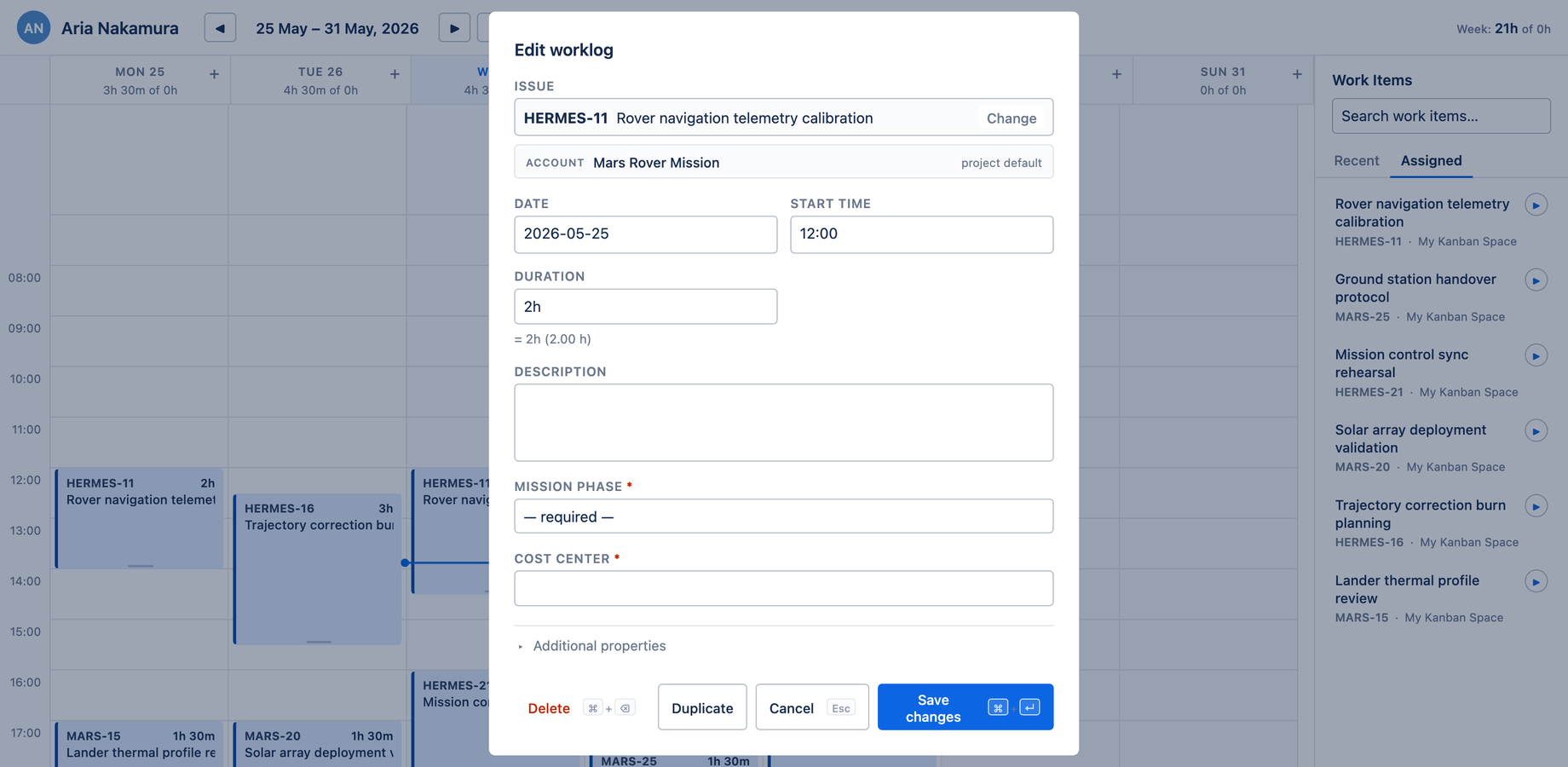
Opening the dialog
The dialog opens from five places:
- The Log Activity button in the calendar header
- The "+" on any day header
- Clicking an empty slot on the grid
- Dragging an issue from the Work Items sidebar onto a slot
- Clicking an existing worklog card to edit it
Fields
| Field | Notes |
|---|---|
| Issue | The Jira issue. Click to expand the picker, then type to search; results show summary, key, and project |
| Date | The day the work was done |
| Start time | When the work started |
| Duration | Accepts Jira-style input (e.g. 1h 30m); a hint shows the parsed value |
| Description | Free-text note (your admin can require this) |
| Additional properties | Collapsible: the Billable flag, account, and any custom attributes |
The Additional properties section is collapsed by default for new worklogs to keep the dialog scannable, and expanded automatically in edit mode so you can see all of an existing worklog's values at once.
Keyboard flow
The dialog is built for keyboard-first entry:
- When you open it without an issue, focus lands on the issue picker — press Enter or Space to expand it and start typing
- When you open it with an issue already set (edit mode, or drag-from-sidebar), focus lands on Duration with the value selected, so you can immediately overtype
- Cancel is bound to Esc
- Log work is bound to ⌘ + ↵ on macOS (Ctrl + ↵ on Windows)
The shortcut chips are shown on the buttons themselves, so you don't have to memorize them.
tip
Because the same dialog backs every surface, anything you learn here applies to logging from a Jira issue via the issue panel too.