Account custom field
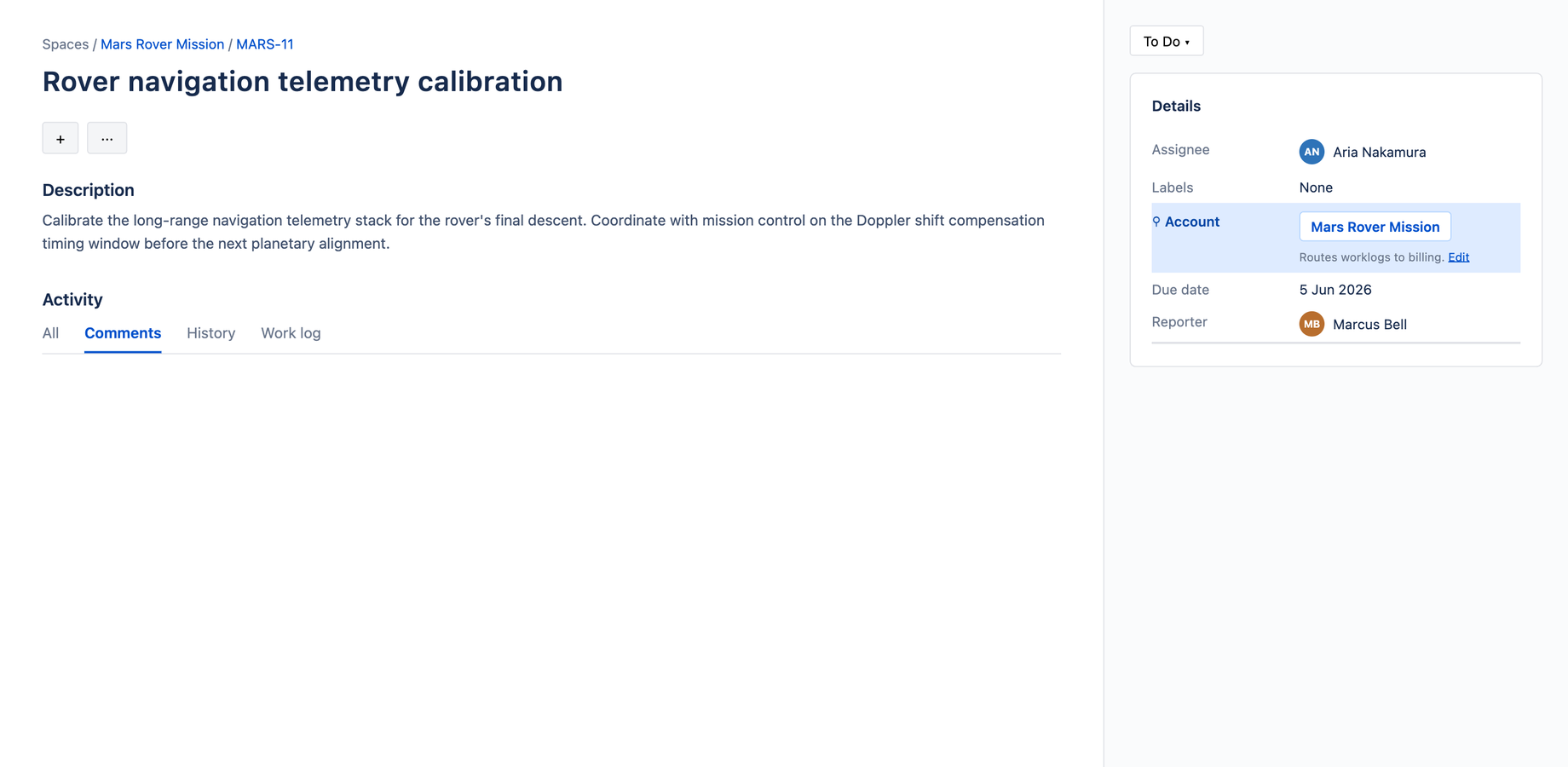
Aevon adds a site-wide Jira custom field called Account. Setting it on an individual issue overrides the project's default routing for any time logged against that issue.
What it is
- A locked, site-wide custom field — project admins can't delete, duplicate, or rename it
- Rendered as native view and edit components on the issue
- The highest-priority input in the routing waterfall: if an issue has an Account value, that account wins over the project default
Setting it on an issue
On the issue, find the Account field in the details panel, click to edit, search, and pick an account. Time logged against that issue now routes to the chosen account.
Adding the field to your issue screens
On install, the Account field is not automatically added to your projects' issue screens — that's a Jira platform constraint. Until a project admin adds it, people can't set per-issue overrides for that project.
A project admin adds it under Project settings → Issues → Screens, adding the Account field to the relevant screen(s). After that, the field appears on issues in that project and per-issue overrides work.
JQL autocomplete
The field supports JQL autocomplete, so you can query by account in Reports' Advanced JQL filter or anywhere you write JQL:
"Account" = "Mars Rover Mission"
Autocomplete is available in JQL search. The issue navigator's basic-mode filter chip doesn't consume the field's suggestions — use JQL mode for account queries there.