Datasets
A dataset is the set of issues a dashboard charts against. Every widget reads from the dashboard's active dataset, so this is the first thing to set on a new dashboard. A dashboard can hold several curated datasets and switch between them from the Dataset dropdown at the top.
Add a dataset
On a new (empty) dashboard, click Add a dataset (or open the Dataset dropdown → Add dataset…) and choose a source.
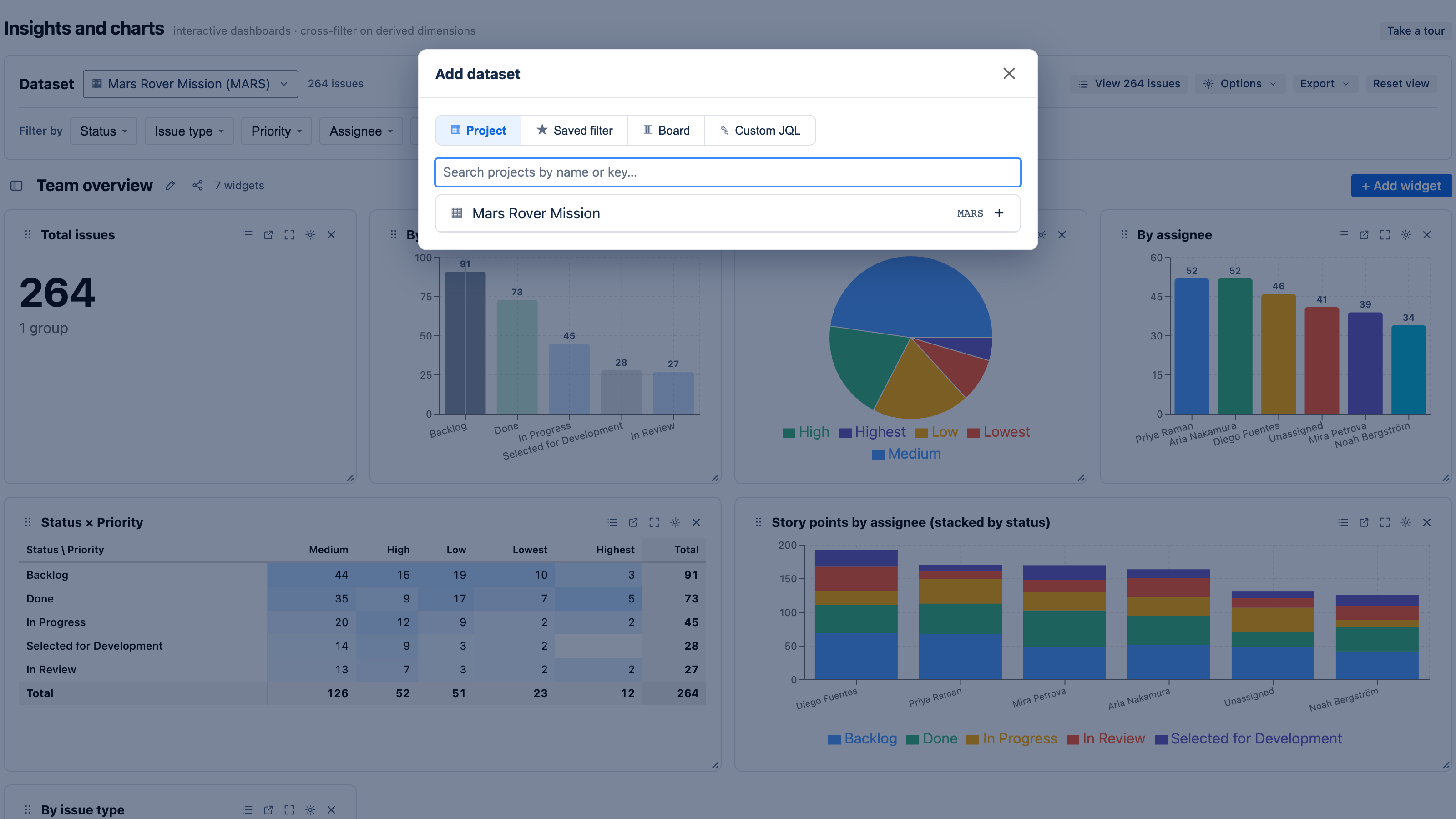
Project
All issues in a Jira project. Searching pulls from the projects you can see. Choosing a project also unlocks per-project history and change-log rollups — so the derived metrics (time-in-status, WIP aging, reopens) and the flow-history charts (CFD, open-over-time) have data to read. If you only ever pick one dataset, make it a project.
Agile board
A Scrum or Kanban board. A board dataset scopes the dashboard to that board's issues and is required for velocity and sprint burndown, which read sprint data from Jira's agile API. When you pick a board, the dashboard resolves the board's project automatically.
Saved filter
Any Jira saved filter you have access to. Its JQL becomes the dataset, which makes saved filters the easiest way to chart a cross-project or cross-team scope — build the filter once in Jira, then point a dashboard at it.
Custom JQL
Write your own JQL when no saved filter fits. The editor includes autocomplete for:
- Fields — start typing to see matching fields.
- Operators — valid operators for the field you're on (
=,in,>=,~, …). - Values — suggested values for the field (statuses, priorities, users, …).
- Keywords —
AND,OR,ORDER BY.
The JQL is validated before it's saved, so you'll see an error rather than an empty chart if the query is malformed.
Both saved filter and custom JQL datasets can span many projects (project in (ABC, DEF) or any filter). Every widget then aggregates across that whole scope.
Switch, rename, and remove
- Switch the active dataset from the Dataset dropdown — all widgets re-read instantly.
- Remove a dataset from the same dropdown (the × next to it). Removing a dataset doesn't delete any Jira data; it just unlinks it from the dashboard.
Next
- Adding charts — turn a dataset into widgets.
- Derived metrics — what a project dataset unlocks.
- Templates & recipes — ready-made dashboards per dataset type.